


Linux gaming has changed dramatically. A few years ago, getting a demanding Windows game running could feel like a weekend project involving compatibility layers, obscure launch options, and plenty of trial and error. In 2026, the situation is much friendlier—but that doesn’t mean every Linux gaming setup is automatically optimized. The right Tech Hacks pblinuxgaming approach can still make the difference between inconsistent frame rates and a smooth, responsive gaming experience.
This guide focuses on practical improvements rather than magic tweaks. We’ll look at drivers, Proton, Vulkan, system settings, background processes, storage, frame pacing, and the troubleshooting habits that can save hours.
Quick Summary: The Most Useful Linux Gaming Hacks
- Keep your Linux kernel, graphics stack, and GPU drivers reasonably up to date.
- Prefer Vulkan when a game and compatibility layer support it properly.
- Use Proton Experimental or a current stable Proton release when appropriate.
- Monitor frame times instead of judging performance only by average FPS.
- Avoid blindly copying launch commands from random forums.
- Keep games on fast storage with adequate free space.
- Disable unnecessary background applications while gaming.
- Test one performance change at a time so you know what actually helped.
- Use per-game configurations rather than changing global settings unnecessarily.
- Don’t assume the newest driver or Proton version is automatically the best choice for every game.
Why Linux Gaming Optimization Still Matters in 2026
A modern gaming PC can have plenty of raw power and still deliver a poor experience. You might see 120 FPS in one scene and sudden stutters when entering another area. Average FPS looks impressive, yet the game feels strangely sluggish.
That’s where optimization becomes more interesting.
Gaming performance isn’t simply about pushing the highest possible frame-rate number. Frame-time consistency, shader compilation, CPU scheduling, GPU utilization, memory pressure, storage speed, and compatibility-layer behavior can all affect how a game feels.
For example, a system averaging 90 FPS with frequent frame-time spikes may feel worse than a system producing a stable 75 FPS. Competitive players notice this immediately, but even single-player games benefit from consistent delivery.
Linux also gives experienced users considerable control over the software stack. That flexibility is useful, but it creates another problem: there are dozens of tweaks available, and not all of them are worthwhile.
The smartest Tech Hacks pblinuxgaming strategy is therefore simple: measure first, change one thing, and measure again.
1. Start With the GPU Driver and Graphics Stack
Why drivers matter so much
The graphics driver is one of the foundations of Linux gaming. Whether you’re using an NVIDIA, AMD, or Intel GPU, the driver and supporting graphics stack determine how efficiently games communicate with the hardware.
AMD and Intel users commonly benefit from the Mesa graphics stack, while NVIDIA users need to pay particular attention to the installed proprietary driver and its compatibility with their distribution.
Don’t treat driver updates as a ritual where newer always means faster. A newer release can fix a game-specific problem, improve Vulkan behavior, or resolve a crash, but it can occasionally introduce regressions too.
If a game suddenly starts behaving badly immediately after a driver change, remember what changed. Being able to roll back or test another supported version is a valuable troubleshooting skill.
Check Vulkan before chasing advanced tweaks
Vulkan is particularly relevant to Linux gaming because it provides a modern graphics API that works well with compatibility technologies such as Proton.
A properly configured Vulkan stack can provide excellent performance, but if Vulkan isn’t functioning correctly, no amount of clever launch options will compensate for the underlying problem.
Before tweaking dozens of variables, verify that your GPU is detected correctly and that Vulkan applications can initialize normally.
2. Get More From Steam and Proton
For many Linux gamers, Proton is the piece of technology that makes the platform practical. It allows many Windows games to run through a compatibility environment without requiring developers to release a separate native Linux build.
But Proton isn’t one single setting.
Choose the Proton version per game
Steam allows users to configure compatibility settings on an individual-game basis. This is useful because one Proton release may behave perfectly with a particular title while another version might introduce a bug.
If a game works, don’t change Proton simply because a newer version exists.
If a game doesn’t work, however, testing another supported Proton version is one of the first sensible troubleshooting steps.
Don’t blindly copy launch options
Search for a game online and you’ll often find enormous launch commands containing environment variables, rendering options, CPU tweaks, and compatibility switches.
Some can help. Others are outdated, redundant, or designed for completely different hardware.
A better approach is to understand what a parameter does before using it. If removing a launch option changes nothing, you probably didn’t need it in the first place.
This is one of the most underrated Linux gaming habits: simplify before you optimize.
3. Improve FPS and Frame-Time Consistency
Average FPS isn’t the whole story
Suppose your monitoring overlay reports 100 FPS. Sounds great, right?
Not necessarily.
If frame delivery repeatedly jumps from 8 milliseconds to 30 milliseconds and back again, you’ll experience visible or perceptible stuttering even though the headline FPS number remains high.
That’s why serious troubleshooting should consider frame times alongside FPS.
When testing a tweak, compare the same game area under similar conditions. Record the average FPS and watch for sudden frame-time spikes.
Adjust graphics settings strategically
Not every graphics setting has the same performance cost.
Resolution and certain forms of ray tracing can place significant pressure on the GPU. Shadow quality, volumetric effects, reflections, view distance, and post-processing can also have substantial costs depending on the game.
Rather than setting everything to Low, reduce the settings that consume the most resources.
For example, if your GPU is struggling, lowering resolution or demanding effects may provide a larger improvement than reducing texture quality. If you’re CPU-limited, lowering visual settings may barely change performance.
The goal isn’t to make a game look bad. It’s to identify the settings that consume resources without providing enough visual benefit.
4. Use Linux System Tweaks Carefully
Linux offers plenty of opportunities for customization, but system-level changes should be approached with restraint.
Manage background applications
Browsers with dozens of tabs, cloud synchronization tools, launchers, screen recorders, virtual machines, and other applications can consume RAM and CPU resources.
Before launching a demanding game, close anything you don’t need.
This sounds almost too obvious, but it’s one of the easiest performance improvements because it doesn’t require changing the operating system at all.
Watch memory and swap usage
If your system runs out of physical memory while gaming, performance can deteriorate sharply.
A game that normally runs smoothly may begin stuttering when another process consumes several gigabytes of RAM in the background.
Use system-monitoring tools to identify CPU, RAM, GPU, and storage pressure rather than guessing.
If memory usage is consistently near its limit, upgrading RAM may be more effective than spending hours experimenting with kernel parameters.
Keep enough free storage
Modern games can occupy enormous amounts of disk space. Keeping a reasonable amount of free capacity is useful for general system operation, updates, shader caches, and temporary files.
An SSD or NVMe drive can also make loading and asset streaming noticeably better than an older mechanical hard drive, although storage upgrades don’t automatically increase GPU-bound FPS.
That distinction matters. Faster storage can improve loading and reduce certain streaming bottlenecks, but it won’t turn a GPU-limited 45 FPS game into a 100 FPS game.
5. Advanced Tech Hacks for Experienced Linux Gamers
Once the basics are working, you can investigate more advanced tools and settings.
Performance overlays
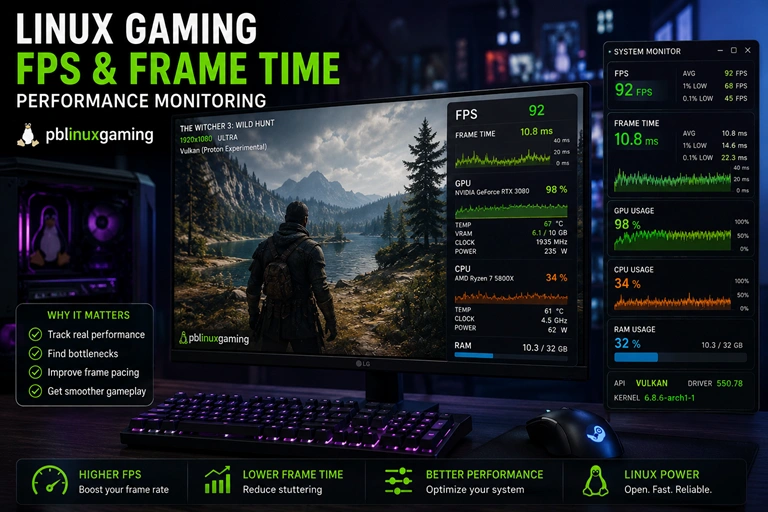
Monitoring tools can show useful information such as FPS, frame times, GPU utilization, CPU usage, temperatures, VRAM consumption, and memory usage.
These numbers help answer an important question: What is actually limiting performance?
If GPU utilization is consistently near its practical limit, you’re probably GPU-bound. If one or more CPU threads are heavily loaded while the GPU has plenty of headroom, the game may be CPU-limited.
This prevents wasted effort. There is little point applying GPU tweaks to a game whose main limitation is the CPU.
Game-specific configuration
Different games behave differently. A competitive shooter, an open-world RPG, and an older DirectX 9 title don’t necessarily benefit from the same settings.
Keep your optimization changes specific to the game whenever possible.
A stable configuration for one title shouldn’t become a global system modification just because it worked once.
Watch shader compilation behavior
Shader compilation can cause stutters, particularly when entering new areas or encountering new visual effects.
Modern compatibility tools and game engines have improved considerably, but shader-related stutter can still occur.
If you experience periodic stutters that correspond with new effects or locations, investigate shader processing before assuming your GPU is failing.
6. A Practical Linux Gaming Optimization Workflow
Here’s a workflow worth following whenever a game performs poorly.
Step 1: Establish a baseline.
Run the game using default settings and record FPS, frame times, GPU usage, CPU usage, and memory usage.
Step 2: Check the obvious problems.
Verify the game is using the correct GPU, confirm drivers are functioning, and make sure the system isn’t overheating or running out of memory.
Step 3: Test Proton versions.
If you’re running a Windows game through Steam, test an appropriate Proton version when compatibility appears to be the problem.
Step 4: Adjust the largest performance bottleneck.
GPU-bound? Reduce expensive graphics options. CPU-bound? Look at CPU-heavy settings and background workloads. Memory-bound? Investigate RAM usage.
Step 5: Test one change at a time.
Changing ten settings simultaneously makes troubleshooting difficult because you don’t know which change produced the result.
Step 6: Keep the configuration that works.
Once you have a stable setup, document it. There’s no prize for endlessly tweaking a game that already runs well.
This method is slower than copying a mysterious command from a forum, but it produces much more reliable results.
FAQ: Linux Gaming Tech Hacks
What is the best way to improve FPS on Linux?
Start by identifying whether the GPU or CPU is limiting performance. Update supported graphics drivers, optimize demanding in-game settings, close unnecessary background applications, and use appropriate Proton versions for Windows games.
Does Proton reduce gaming performance on Linux?
Proton can introduce some performance overhead, but the difference varies considerably by game, API, driver, and configuration. Many games run very well through Proton, while others may require additional compatibility work.
Should I use every Linux gaming launch option I find online?
No. Launch options should solve a specific problem or provide a measurable benefit. Adding unnecessary commands can create compatibility issues, make troubleshooting harder, and sometimes reduce performance.
Is Linux good for PC gaming in 2026?
Linux is a strong gaming platform, particularly for users whose favorite games work well with Steam and Proton. Compatibility varies by title, so checking a game’s current Linux support before switching platforms is still sensible.
Conclusion
The best Tech Hacks pblinuxgaming aren’t secret commands or extreme kernel modifications. They’re disciplined habits: keep the graphics stack healthy, understand Proton, measure frame times, identify the real bottleneck, and make changes one at a time.
Linux gives gamers an unusual amount of control. Use that control intelligently. A clean, well-measured configuration will usually beat a system overloaded with random tweaks—and it will be much easier to maintain when the next driver, Proton release, or game update arrives.