

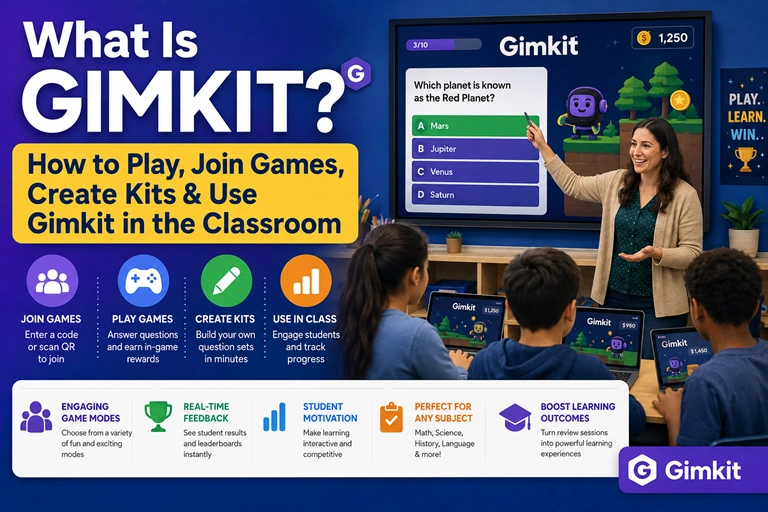

What Is Gimkit?
Imagine a teacher finishing a 20-question review lesson and realizing that half the class was quietly guessing while the other half had already switched off mentally. Now picture the same review turned into a live competition where students answer questions, earn in-game currency, make strategic choices and watch their progress change in real time. That is the basic appeal of Gimkit.
Gimkit is an educational game platform designed around quiz-based learning. Teachers create or use question sets called Kits, select a game mode and host a live session for students. Students answer questions while interacting with the mechanics of the selected game.
The platform can be used for quick classroom reviews, practice activities, revision sessions and, depending on the available features and plan, independent assignments. Gimkit’s current help documentation also includes tools such as Classes, Assignments, multiple game modes, question banks and Kit creation options.
The key difference from a basic online quiz is the layer of gameplay. Students are not simply moving from Question 1 to Question 2. Correct answers can influence what happens inside the selected game mode, giving the activity a more interactive structure.
Quick Summary
- Gimkit is an educational game platform built around question-based learning.
- Teachers create Kits, which contain questions and answers.
- Students can join live games through a game code, QR code or join link.
- Teachers choose a game mode before starting a live session.
- Gimkit offers different modes designed for different classroom experiences.
- Classes can help teachers manage students and track assignment progress.
- Teachers can create Kits from scratch or use other content-creation options.
- Some features, including certain Pro capabilities, depend on the user’s account or subscription.
How Does Gimkit Work?
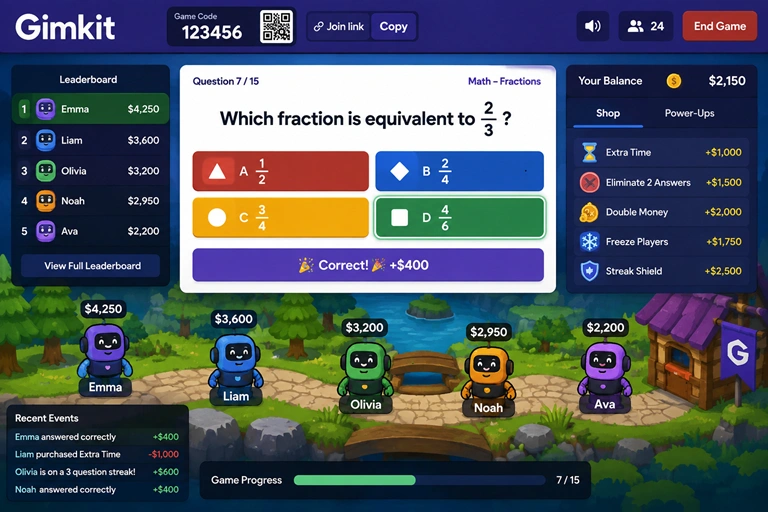
At its simplest, the Gimkit workflow is straightforward: prepare questions, choose how students will play, invite them into the game and use their performance as part of the learning activity.
A teacher begins with a Kit. A Kit is essentially the content layer of the experience. It contains the questions students will encounter during gameplay. Once the Kit is ready, the teacher can choose Play Live, select a game mode and configure the available game options.
This separation between content and gameplay is useful. The same question set can potentially be used in different ways rather than creating an entirely new quiz every time.
For example, a history teacher might create a Kit containing questions about the American Revolution. The teacher could then select a competitive game mode for a review before an exam. A language teacher might use another mode with vocabulary questions. The questions remain connected to the learning objective while the gameplay changes the classroom experience.
Gimkit’s Mode Picker is designed to help teachers select an appropriate game mode, with descriptions and labels intended to indicate the character of different modes.
What Are Gimkit Kits?
A Kit is the question set used to power a Gimkit game. Teachers can create one from scratch by naming the Kit, choosing information such as language and subject, selecting a cover image and adding questions. Questions can include correct and incorrect answers, and media options are available depending on the feature and account.
Gimkit’s Kit tools also include options such as a Question Bank, importing flashcard sets and spreadsheet/CSV-based creation. That can save teachers considerable time when they already have material prepared elsewhere.
How to Join a Gimkit Game
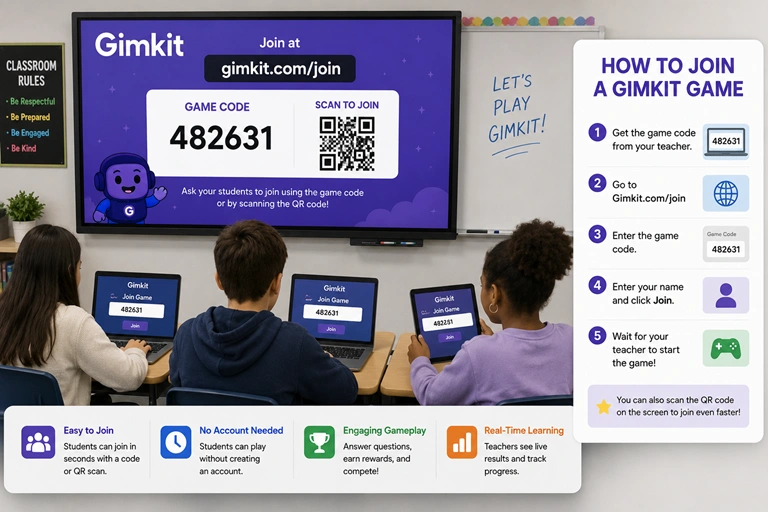
For students, joining a live Gimkit game usually takes only a few steps.
The teacher starts the game and displays a game code, QR code or join link. Students can then visit the Gimkit join page and enter the code provided by the teacher. Gimkit’s current instructions identify gimkit.com/join as the destination for joining a live game.
Step-by-Step Gimkit Join Instructions
- Ask your teacher for the Gimkit game code or QR code.
- Open the Gimkit join page.
- Enter the game code shown by the teacher.
- Enter or approve your player name when prompted.
- Wait in the lobby until the teacher starts the game.
- Follow the instructions for the selected game mode.
If the teacher is using Gimkit Classes and the student is logged in appropriately, joining can be more streamlined. Gimkit also supports QR codes, which can be useful in classrooms where students are working on tablets or phones and the teacher wants to avoid typing a code repeatedly.
Do You Need a Gimkit Account to Play?
Not necessarily in every classroom situation.
Gimkit’s current account documentation says that accounts are required for educators who want to create Kits and host games, while student accounts are optional. Students joining a particular teacher’s game may therefore have a different experience depending on whether the teacher is using Classes and how the game has been configured.
That distinction matters because students often search for “Gimkit login” when what they actually need is simply the teacher’s game code and join page.
How to Create a Gimkit Kit
Creating your own Kit is one of the most useful parts of Gimkit because it lets teachers build the questions around exactly what the class is studying.
From the dashboard, a teacher can select New Kit, enter basic information and then add questions. Gimkit’s current documentation describes adding a question by entering the question, correct answer or answers and incorrect answers. Media can also be attached where supported.
A Practical Kit-Creation Workflow
Start with the learning objective rather than the game.
Suppose the objective is to help Grade 8 students understand linear equations. Instead of writing 40 random questions, divide the Kit into useful categories:
- Identifying variables
- Solving one-step equations
- Solving two-step equations
- Checking an answer
- Applying equations to word problems
That structure makes the resulting game more than entertainment. Students are repeatedly practicing a defined skill.
Teachers can also use Gimkit’s Question Bank to find questions from public Kits and add suitable material to their own Kits.
For larger question sets, spreadsheet importing can be another option. Gimkit provides a CSV-based workflow for creating Kits from spreadsheet content, which can be particularly useful when questions have already been prepared in a structured format.
Tips for Better Gimkit Questions
A good Gimkit Kit should not consist entirely of obvious recall questions.
Mix question types and difficulty levels. For example, a science Kit might contain straightforward vocabulary questions alongside short application scenarios. Keep wording clear enough that students are tested on the subject rather than on their ability to decode complicated sentences.
It is also worth reviewing every imported or reused question. A question that contains an outdated fact, ambiguous wording or two arguably correct answers can create unnecessary confusion once dozens of students are playing simultaneously.
How to Host a Gimkit Game in Class
Once the Kit is ready, hosting a live game is relatively simple.
Gimkit’s current hosting workflow is: select a Kit, select a game mode, configure game options, share the game code or join link, and start the game.
Step 1: Select Your Kit
Choose the question set you want students to practice.
Step 2: Choose a Game Mode
Open the Mode Picker and review the available options. Different modes are designed to create different styles of play, so the fastest or most competitive mode is not automatically the best choice for every lesson.
Step 3: Configure Game Options
Depending on the mode, teachers can configure options such as the game goal, class connection, late joining and nickname settings. Some modes also provide additional controls that affect the relationship between answering questions and progressing through the game.
This is where a little planning pays off. If your goal is rapid review, you may want a relatively short session. If students are learning a new concept, a slower activity with opportunities for discussion may work better.
Step 4: Share the Game
Students can join using the displayed code, QR code or game link. The lobby allows the teacher to see who has joined before starting. Gimkit’s hosting documentation also explains that teachers can choose whether to participate in certain 2D games as a player or spectator.
Step 5: Start and Monitor
Once everyone is ready, start the game.
The teacher can monitor gameplay and use available host controls. In a classroom setting, the leaderboard can become a useful source of energy, but it should not become the sole measure of learning. A student who finishes first is not necessarily the student who has understood the material most deeply.
What Are Gimkit Game Modes?
Game modes are one of the features that make Gimkit different from a conventional quiz.
Instead of every session feeling identical, teachers can choose different gameplay structures. Gimkit describes its modes as having different characteristics, including options that can emphasize excitement, strategy, collaboration or a calmer experience.
Some modes use 2D environments where students control characters called Gims. These modes can introduce additional gameplay elements beyond simply answering questions.
The best mode depends on the lesson.
For a five-minute warm-up, a complex mode may be unnecessary. For a longer review session, a more strategic format could keep students involved. Teachers should also consider class size, age, device limitations and whether competition helps or distracts from the learning objective.
Gimkit’s game options allow hosts to adjust certain aspects of gameplay. In 2D modes, for example, teachers can adjust the balance between answering questions and gameplay rewards.
How Can Teachers Use Gimkit in the Classroom?
Gimkit works best when it supports an existing teaching strategy rather than replacing it.
1. Exam Review
Create a Kit based on the topics students are expected to know. Use a live game near the end of a revision lesson to identify weak areas.
If several students repeatedly miss questions about the same concept, stop the game briefly and explain it. That turns gameplay data into a teaching opportunity.
2. Lesson Warm-Ups
A short Gimkit session can activate prior knowledge at the beginning of class. Five to ten carefully chosen questions may be enough.
This works especially well when students have already encountered the topic and need a quick mental reset before the main lesson.
3. Vocabulary Practice
Language teachers can create Kits around vocabulary, definitions, synonyms, translations or sentence usage.
Rather than asking only “What does this word mean?”, include questions that require students to recognize the word in context.
4. Science and Math Practice
Gimkit can support repeated practice of equations, terminology, scientific concepts and problem-solving steps.
The teacher still needs to decide which questions are pedagogically useful. Gamification can make repetition more tolerable, but it cannot fix poorly designed questions.
5. Independent Practice
Gimkit also supports Assignments for certain use cases. According to Gimkit’s documentation, Assignments allow students to play independently, and Classes can help teachers track completion and preserve assignment progress. Current documentation notes that Assignments are a Pro feature.
This makes the platform potentially useful beyond a single classroom screen.
Gimkit Classes: Why Teachers May Want to Use Them
Classes are designed to make ongoing classroom management easier.
According to Gimkit’s current documentation, Classes can help teachers manage student names in live games, track assignment progress, view multiple assignment completions and save assignment progress.
Teachers can share a class link with students. Once students authenticate and join, they can be added to the relevant class depending on the teacher’s settings. Gimkit also provides an Auto-Accept option that teachers can enable or disable.
For a teacher who uses Gimkit only once, Classes may not be necessary. For someone using it regularly across several weeks, however, organizing students into a class can make assignments and reporting more manageable.
Is Gimkit Free?
Gimkit offers free account creation, but not every feature is necessarily included in the free experience.
Gimkit’s current account documentation states that creating and maintaining an account is free, while Gimkit Pro is an optional paid add-on for Educator accounts. New accounts are currently described as receiving a 14-day free trial of Gimkit Pro.
Because pricing, plans and feature availability can change, teachers should check Gimkit’s current official pricing information before making a purchasing decision.
The practical takeaway is simple: you can start exploring Gimkit without paying to create an account, but advanced features may depend on the plan you’re using.
Gimkit Best Practices for Teachers
A successful Gimkit session is not simply the one with the loudest classroom.
Start by defining what students should learn. Then build questions that measure that objective.
A few practical rules can make a noticeable difference:
- Keep the first questions relatively accessible so students understand the mechanics.
- Mix easy, medium and challenging questions.
- Avoid ambiguous multiple-choice answers.
- Explain difficult questions after the game rather than assuming students learned from getting them wrong.
- Use game modes that fit the lesson rather than choosing one purely because it looks exciting.
- Keep sessions short enough that the novelty does not become distraction.
- Review the Kit before sharing it with students.
- Use Classes when ongoing tracking and assignment management matter.
- Treat the leaderboard as a gameplay element, not a complete assessment system.
One of the biggest mistakes is trying to turn every lesson into a competition. Sometimes students need collaboration, discussion or quiet practice. Gimkit is most useful when it is one tool in the teacher’s toolbox.
Frequently Asked Questions About Gimkit
What is Gimkit used for?
Gimkit is used by educators to turn question-based practice into interactive games. Teachers can create Kits, select game modes and host live sessions for students, making it useful for review, practice and classroom engagement.
How do students join a Gimkit game?
Students can join a live Gimkit game by using the game code, QR code or join link provided by their teacher. The standard join page is Gimkit’s /join page, where students enter the displayed game code.
Can teachers create their own Gimkit questions?
Yes. Teachers can create Kits from scratch and add their own questions, answers and media where supported. Gimkit also provides tools such as a Question Bank and spreadsheet import options for creating content more efficiently.
Is Gimkit free for students?
Gimkit allows students to participate in teacher-hosted games, while account requirements depend on how the teacher has configured the experience. Gimkit accounts themselves are free to create, while some educator features are part of the optional Pro offering.
Final Thoughts
Gimkit works because it takes a familiar classroom activity—answering questions—and gives students a reason to stay involved. The real value, though, comes from how the teacher uses it.
A well-designed Kit, an appropriate game mode and a clear learning objective can turn a routine review into an active classroom session. Used thoughtfully, Gimkit is more than a quiz website: it is a flexible practice tool that combines assessment questions with game mechanics.
For teachers considering Gimkit for the first time, the easiest starting point is to create one short Kit, host one live game and observe which parts actually help students learn. Then adjust the questions and gameplay around what you see.
Suggested Sources
For the most accurate instructions and feature changes, consult Gimkit’s official Help Center, particularly its current guides for hosting games, creating Kits, joining games and managing Classes.